> ## Documentation Index
> Fetch the complete documentation index at: https://docs.throney.gg/llms.txt
> Use this file to discover all available pages before exploring further.
# Recruitment & Applications
> Build custom application forms, post recruitment embeds, and review applicants through Discord threads and the web dashboard.
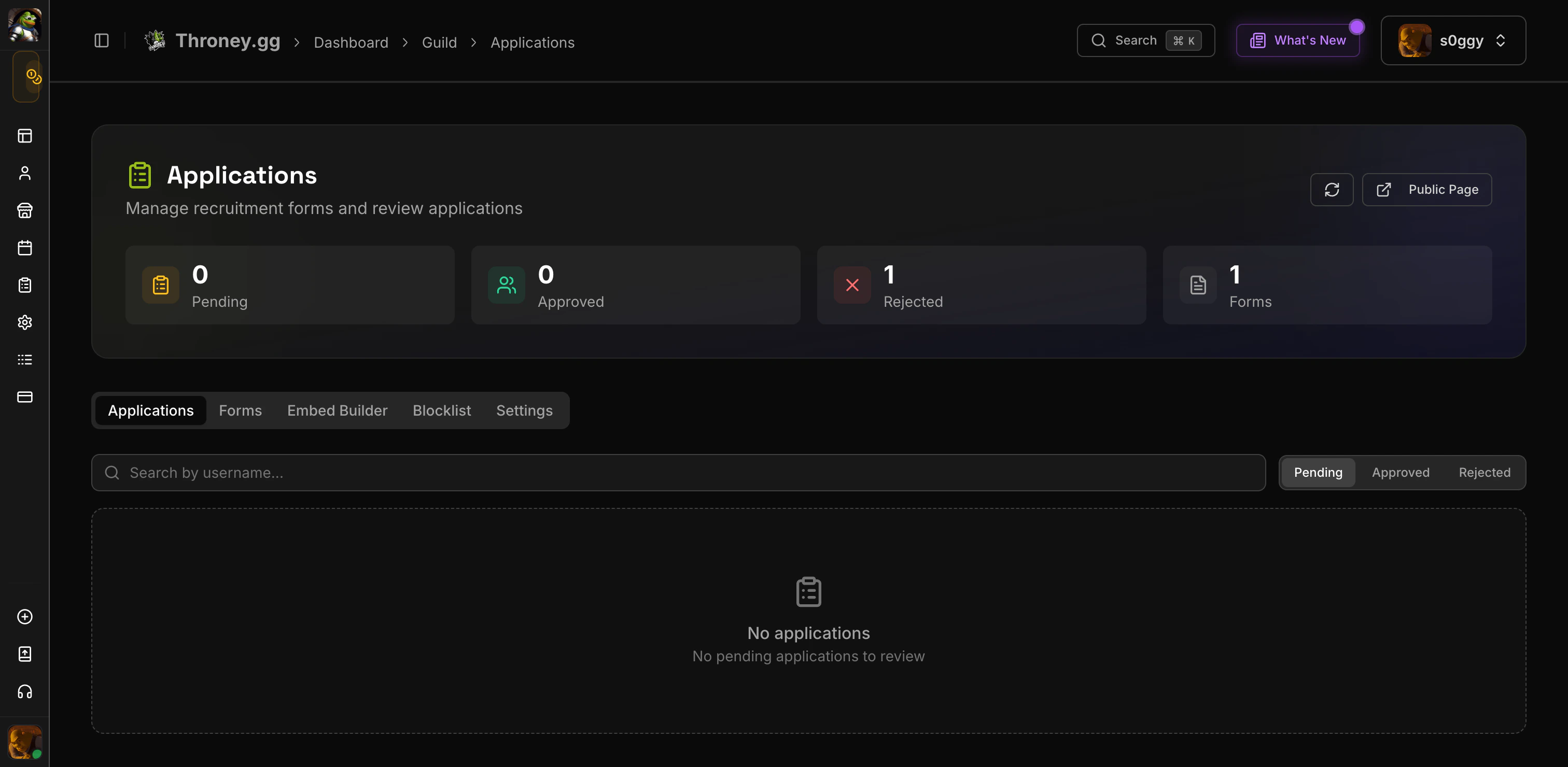
The **Recruitment System** gives officers a complete pipeline for handling guild applicants. Build custom forms, post recruitment embeds in Discord, and review applications through Discord threads or the web dashboard.
 This is a **premium** feature. Free-tier alliances cannot access recruitment tools.
***
## How It Works
1. **Officers create forms** with custom questions on the web dashboard
2. **Officers post recruitment embeds** in Discord channels with Apply buttons
3. **Applicants fill out forms** via the public apply page or Discord buttons
4. **A review thread is created** in your designated channel with the applicant's responses
5. **Officers review** using Accept/Deny buttons in Discord or on the web dashboard
6. **Applicants get notified** via DM with the decision and any message from officers
***
## Creating Application Forms
Navigate to **Dashboard > Recruitment > Forms** and click **Create Form**.
This is a **premium** feature. Free-tier alliances cannot access recruitment tools.
***
## How It Works
1. **Officers create forms** with custom questions on the web dashboard
2. **Officers post recruitment embeds** in Discord channels with Apply buttons
3. **Applicants fill out forms** via the public apply page or Discord buttons
4. **A review thread is created** in your designated channel with the applicant's responses
5. **Officers review** using Accept/Deny buttons in Discord or on the web dashboard
6. **Applicants get notified** via DM with the decision and any message from officers
***
## Creating Application Forms
Navigate to **Dashboard > Recruitment > Forms** and click **Create Form**.
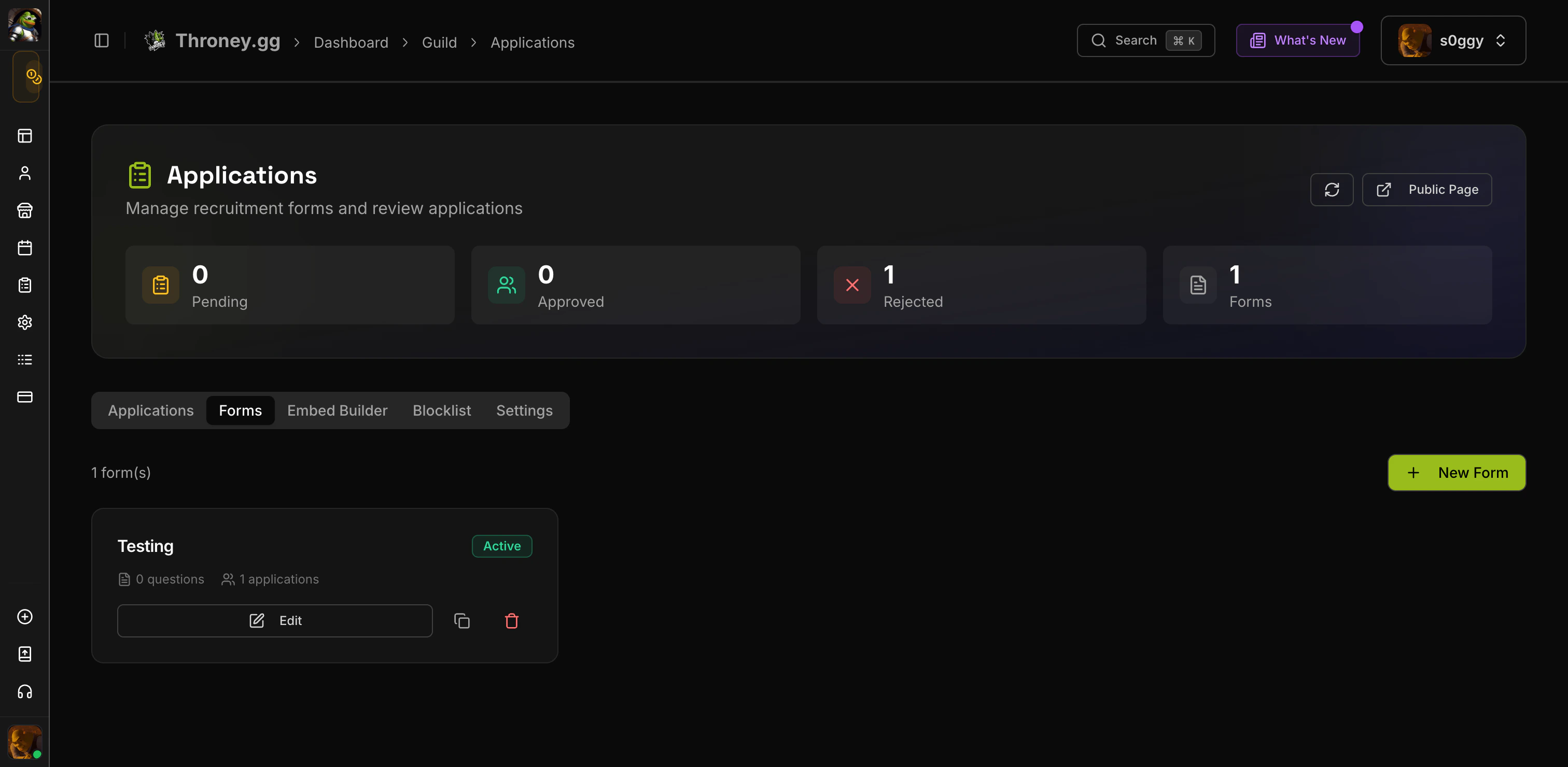 ### Form Settings
* **Title** - The name applicants see when choosing which form to fill out
* **Description** - Optional context shown at the top of the form
* **Active** - Toggle whether the form accepts new submissions
* **Review Channel** - Where review threads are created (overrides the default)
* **Cooldown** - Days an applicant must wait after rejection before reapplying
* **Minimum Account Age** - Reject accounts younger than this (in days)
* **Required Roles** - Discord roles the applicant must have to submit
### Question Types
Forms support 8 block types:
| Type | Description |
| ----------------- | ------------------------------------------------ |
| **Short Text** | Single-line text input |
| **Long Text** | Multi-line paragraph input |
| **Number** | Numeric input |
| **Yes/No** | Boolean toggle |
| **Single Select** | Dropdown with one choice |
| **Multi Select** | Checkboxes for multiple choices |
| **Image** | Image upload field |
| **Info** | Read-only text block (instructions, rules, etc.) |
Each question can be marked as **required** or optional, and has an optional description field for extra context.
Drag blocks to reorder them. The form builder has a **live preview** on the right side showing exactly how your form will look to applicants.
***
## Posting Recruitment Embeds
Navigate to **Dashboard > Recruitment > Embed Builder**.
### Form Settings
* **Title** - The name applicants see when choosing which form to fill out
* **Description** - Optional context shown at the top of the form
* **Active** - Toggle whether the form accepts new submissions
* **Review Channel** - Where review threads are created (overrides the default)
* **Cooldown** - Days an applicant must wait after rejection before reapplying
* **Minimum Account Age** - Reject accounts younger than this (in days)
* **Required Roles** - Discord roles the applicant must have to submit
### Question Types
Forms support 8 block types:
| Type | Description |
| ----------------- | ------------------------------------------------ |
| **Short Text** | Single-line text input |
| **Long Text** | Multi-line paragraph input |
| **Number** | Numeric input |
| **Yes/No** | Boolean toggle |
| **Single Select** | Dropdown with one choice |
| **Multi Select** | Checkboxes for multiple choices |
| **Image** | Image upload field |
| **Info** | Read-only text block (instructions, rules, etc.) |
Each question can be marked as **required** or optional, and has an optional description field for extra context.
Drag blocks to reorder them. The form builder has a **live preview** on the right side showing exactly how your form will look to applicants.
***
## Posting Recruitment Embeds
Navigate to **Dashboard > Recruitment > Embed Builder**.
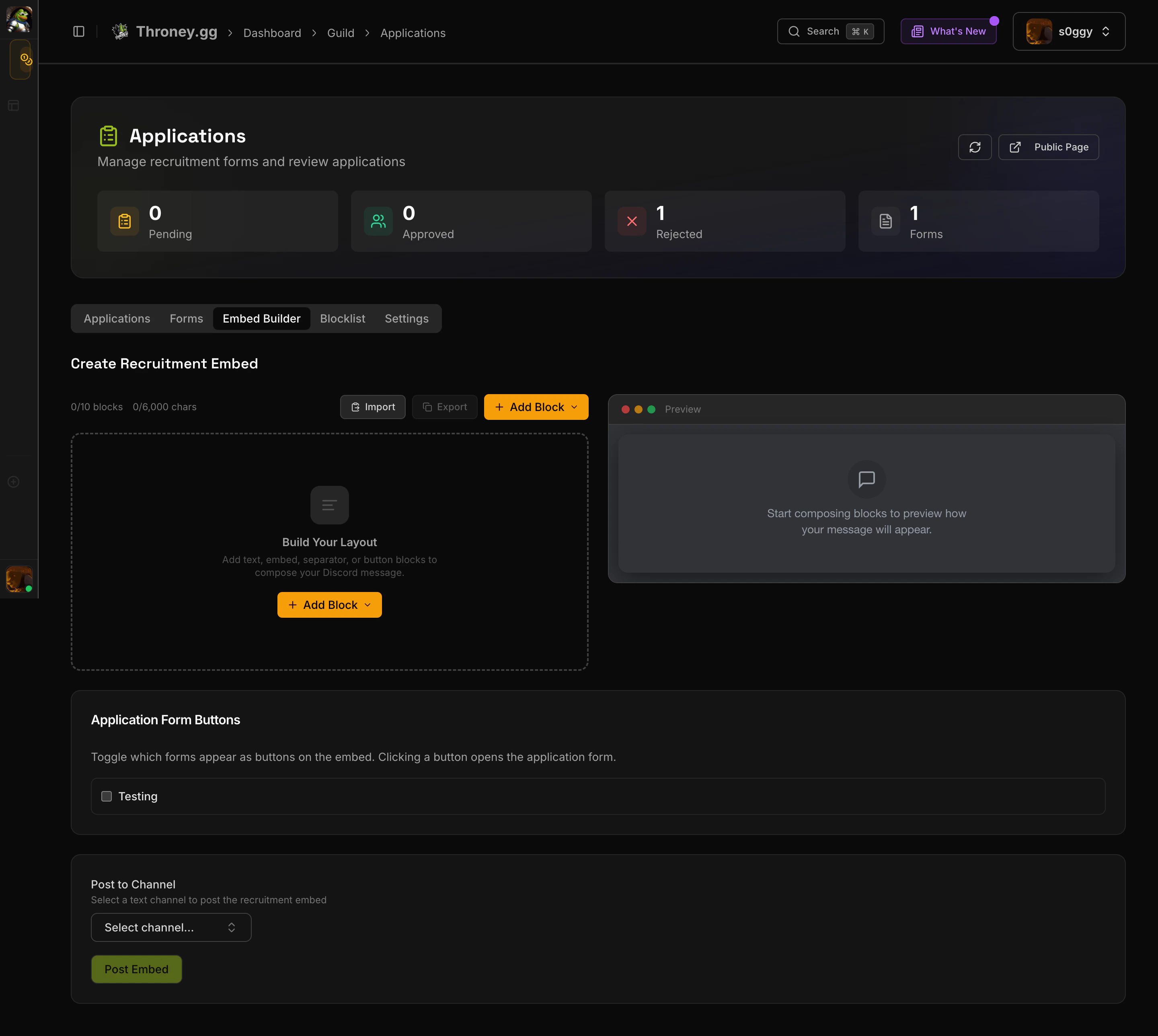 The embed builder is a WYSIWYG editor that lets you design Discord messages with:
* **Text blocks** - Plain message content with Discord markdown support
* **Embed blocks** - Rich embeds with color, title, description, author, images, fields, and footer
* **Separator blocks** - Visual spacing between sections
* **Button blocks** - Link buttons with custom labels
### Form Buttons
Below the editor, toggle which application forms appear as buttons on the embed. Each button can have:
* A custom label (defaults to the form title)
* A style: Primary (purple), Secondary (gray), or Success (green)
### Posting
1. Select a text channel from the dropdown
2. Click **Post Embed**
3. The message appears in Discord with your form buttons attached
To edit an existing embed, click **Edit** on any active embed in the list, make changes, and click **Update Embed**.
***
## Public Apply Page
The embed builder is a WYSIWYG editor that lets you design Discord messages with:
* **Text blocks** - Plain message content with Discord markdown support
* **Embed blocks** - Rich embeds with color, title, description, author, images, fields, and footer
* **Separator blocks** - Visual spacing between sections
* **Button blocks** - Link buttons with custom labels
### Form Buttons
Below the editor, toggle which application forms appear as buttons on the embed. Each button can have:
* A custom label (defaults to the form title)
* A style: Primary (purple), Secondary (gray), or Success (green)
### Posting
1. Select a text channel from the dropdown
2. Click **Post Embed**
3. The message appears in Discord with your form buttons attached
To edit an existing embed, click **Edit** on any active embed in the list, make changes, and click **Update Embed**.
***
## Public Apply Page
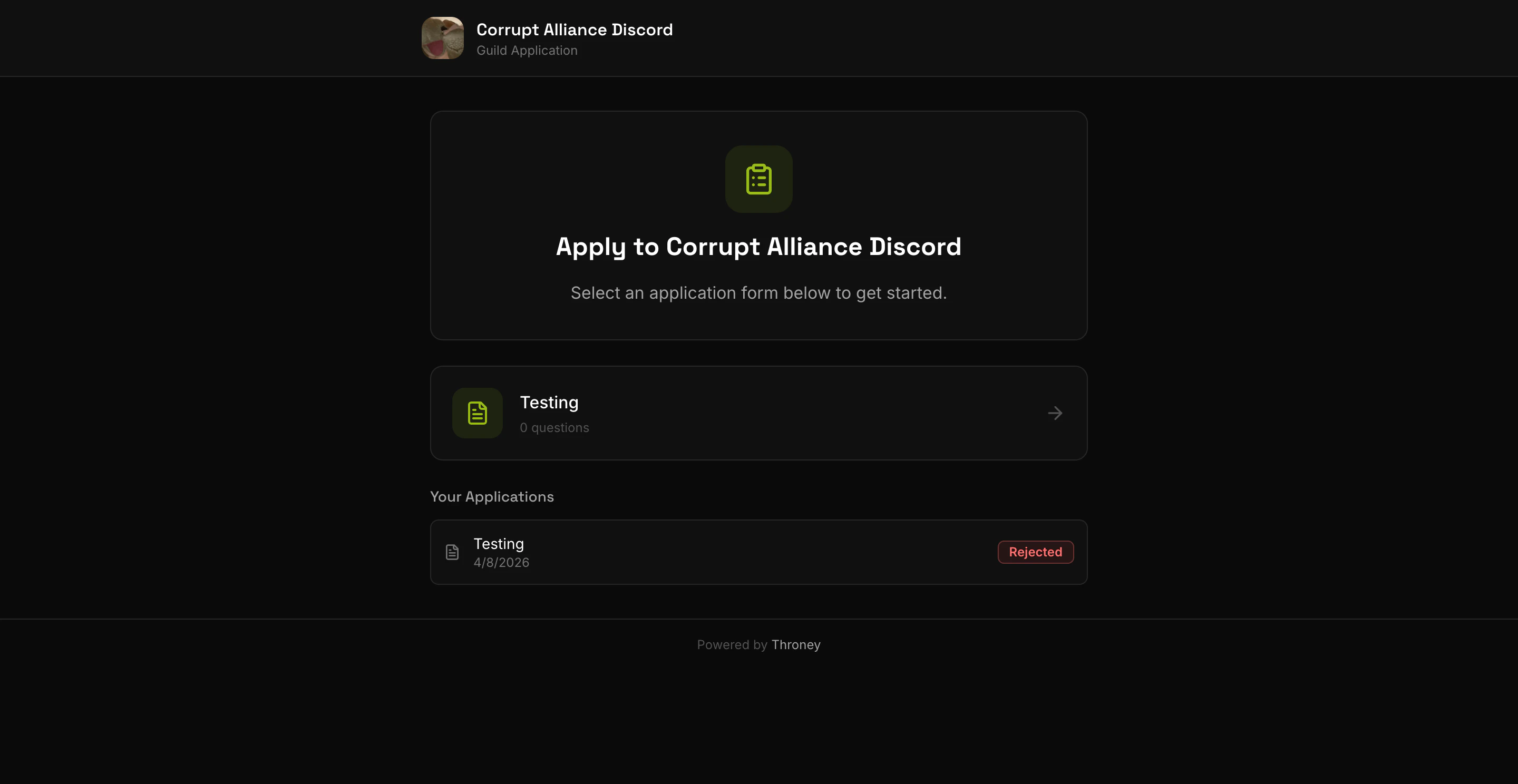 Every alliance gets a shareable apply link:
```
https://throney.gg/apply/YOUR_SERVER_ID
```
Find your link in **Dashboard > Recruitment > Settings**.
When applicants visit the link:
1. They log in with Discord (if not already)
2. They see all active forms and pick one
3. They fill out the form with validation
4. They review their answers before submitting
5. They see a confirmation page
Applicants can also view and withdraw their pending applications.
***
## Discord Review Threads
When an application is submitted, Throney creates a **thread** in your review channel with:
* The applicant's Discord username and ID
* All their responses formatted as embed fields
* Four action buttons:
| Button | Action |
| ---------------- | --------------------------------------------------------------------------------- |
| **Accept** | Opens a modal for an optional message and notes, then approves the application |
| **Deny** | Opens a modal for an optional message and notes, then rejects the application |
| **DM Applicant** | Opens a modal to send a custom message to the applicant without making a decision |
| **View on Web** | Links to the full application review page on the dashboard |
After a decision:
* The thread embed changes color (green for accepted, red for denied)
* Buttons are disabled
* A summary message is posted in the thread
* The applicant receives a DM with the decision
***
## Web Dashboard Review
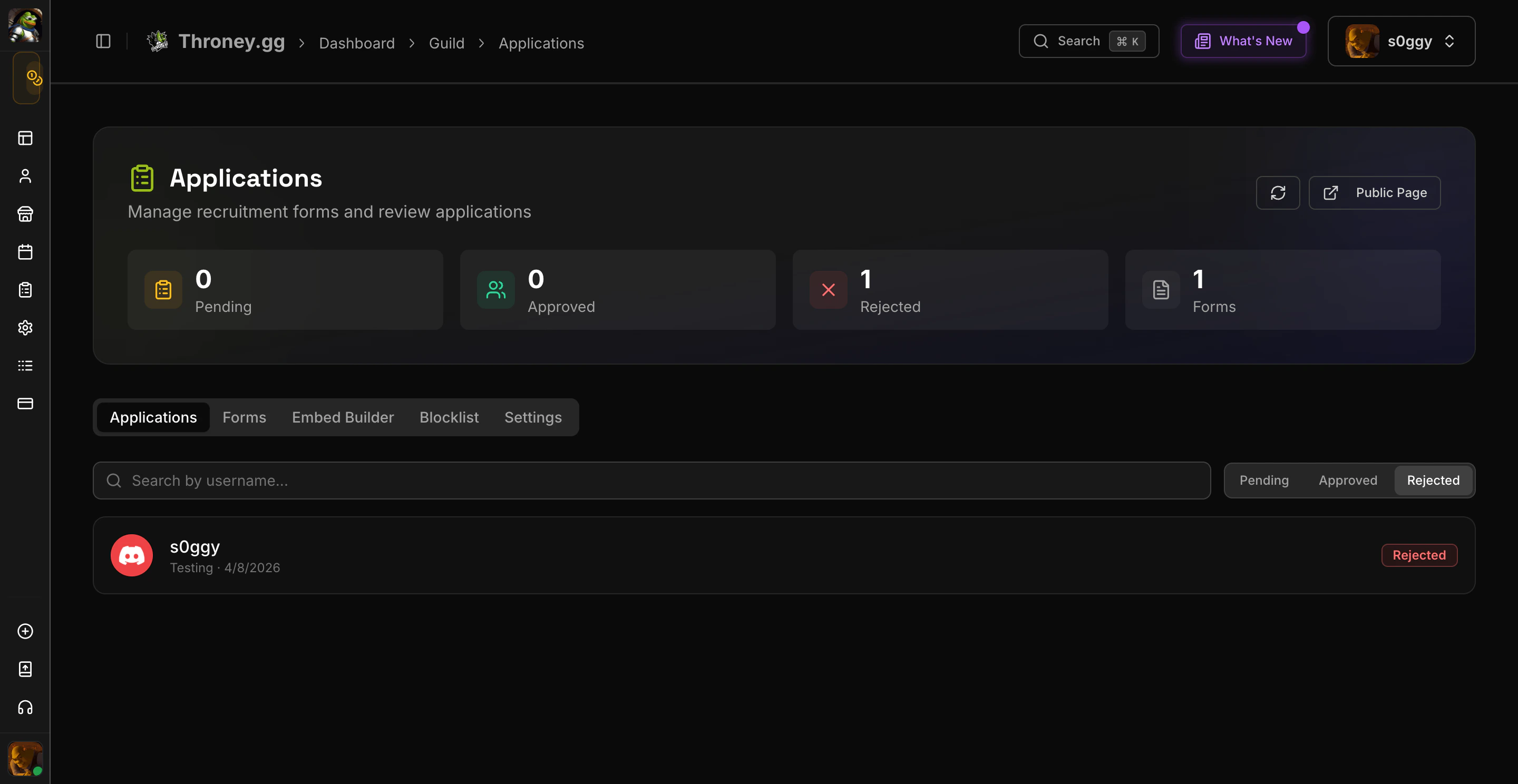
Navigate to **Dashboard > Recruitment > Applications** to see all submissions.
Every alliance gets a shareable apply link:
```
https://throney.gg/apply/YOUR_SERVER_ID
```
Find your link in **Dashboard > Recruitment > Settings**.
When applicants visit the link:
1. They log in with Discord (if not already)
2. They see all active forms and pick one
3. They fill out the form with validation
4. They review their answers before submitting
5. They see a confirmation page
Applicants can also view and withdraw their pending applications.
***
## Discord Review Threads
When an application is submitted, Throney creates a **thread** in your review channel with:
* The applicant's Discord username and ID
* All their responses formatted as embed fields
* Four action buttons:
| Button | Action |
| ---------------- | --------------------------------------------------------------------------------- |
| **Accept** | Opens a modal for an optional message and notes, then approves the application |
| **Deny** | Opens a modal for an optional message and notes, then rejects the application |
| **DM Applicant** | Opens a modal to send a custom message to the applicant without making a decision |
| **View on Web** | Links to the full application review page on the dashboard |
After a decision:
* The thread embed changes color (green for accepted, red for denied)
* Buttons are disabled
* A summary message is posted in the thread
* The applicant receives a DM with the decision
***
## Web Dashboard Review
Navigate to **Dashboard > Recruitment > Applications** to see all submissions.
 ### Filtering
* Filter by status: Pending, Approved, Rejected
* Search by applicant username
* View counts for each status
### Reviewing an Application
### Filtering
* Filter by status: Pending, Approved, Rejected
* Search by applicant username
* View counts for each status
### Reviewing an Application
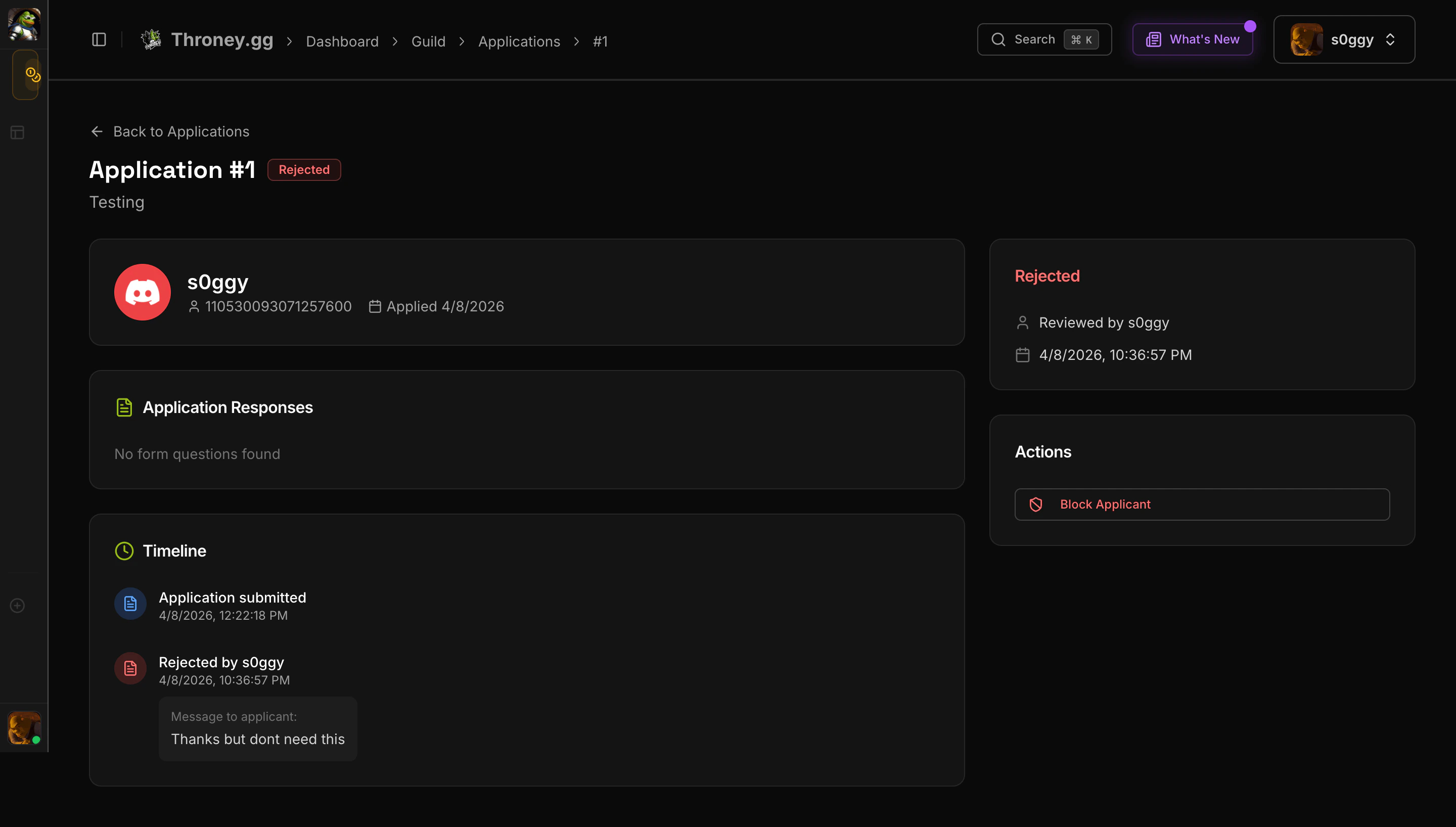 Click any application to see:
* Applicant info (avatar, username, Discord ID)
* All form responses rendered by type
* Application timeline
* Previous applications from the same user
Use the **Accept** or **Deny** buttons on the right sidebar. Both open a dialog where you can:
* Write a **message to the applicant** (sent via DM)
* Add **internal notes** (visible only to officers)
***
## Applicant Blocklist
Navigate to **Dashboard > Recruitment > Blocklist**.
Block specific Discord users from submitting applications. Blocked users see an error when they try to apply. Each entry shows who blocked them and when.
***
## Settings
Navigate to **Dashboard > Recruitment > Settings**.
Click any application to see:
* Applicant info (avatar, username, Discord ID)
* All form responses rendered by type
* Application timeline
* Previous applications from the same user
Use the **Accept** or **Deny** buttons on the right sidebar. Both open a dialog where you can:
* Write a **message to the applicant** (sent via DM)
* Add **internal notes** (visible only to officers)
***
## Applicant Blocklist
Navigate to **Dashboard > Recruitment > Blocklist**.
Block specific Discord users from submitting applications. Blocked users see an error when they try to apply. Each entry shows who blocked them and when.
***
## Settings
Navigate to **Dashboard > Recruitment > Settings**.
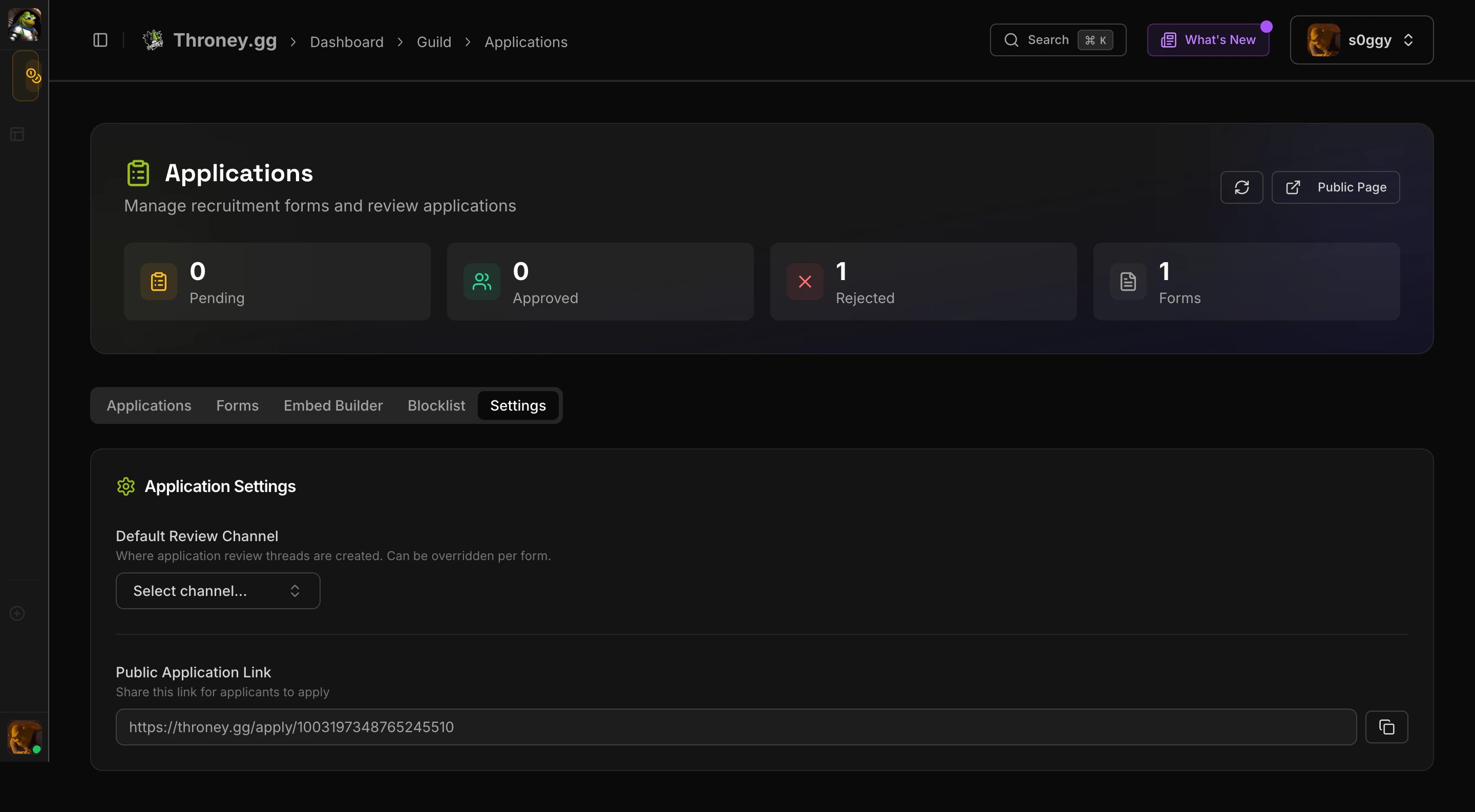 * **Default Review Channel** - Where application review threads are created (can be overridden per form)
* **Public Application Link** - Copy and share your alliance's apply URL
***
## Bot Commands
| Command | Description | Access |
| ---------------------- | -------------------------------------- | -------- |
| Accept/Deny/DM buttons | Review applications in Discord threads | Officers |
The entire review flow works from Discord. Officers never need to open the web dashboard unless they want to search, filter, or view application history.
* **Default Review Channel** - Where application review threads are created (can be overridden per form)
* **Public Application Link** - Copy and share your alliance's apply URL
***
## Bot Commands
| Command | Description | Access |
| ---------------------- | -------------------------------------- | -------- |
| Accept/Deny/DM buttons | Review applications in Discord threads | Officers |
The entire review flow works from Discord. Officers never need to open the web dashboard unless they want to search, filter, or view application history.