> ## Documentation Index
> Fetch the complete documentation index at: https://docs.throney.gg/llms.txt
> Use this file to discover all available pages before exploring further.
# Quickstart
> Set up Throney for your Guild & Alliance in just a few minutes.
Welcome to **Throney**, the ultimate guild management solution! Follow this guide to **set up Throney in minutes** and unlock powerful features for your guild and alliance.
## **Step 1: Add Throney to Your Server**
Click here to invite Throney to your Discord server and begin the setup process.
Join our support server for help, feature requests, and the latest updates!
**Important:** You must have `Admin` permissions in your Discord server to set up Throney.
***
## **Step 2: Set Up Roles for Throney**
After adding Throney, create a **dedicated role** that will serve as the **"Officer"** role. This role grants access to the **Throney Dashboard** for managing your guild and alliance.
### **Required Roles & Permissions**
| Role | Description |
| ------------------------ | ------------------------------------------------- |
| 🎖️ **Alliance Officer** | Full access to the dashboard and all guilds. |
| ⚔️ **Guild Officer** | Manage a specific guild’s dashboard and commands. |
| 👥 **Member** | Required for assigning users to a guild. |
Ensure that the **Officer role** is positioned **above all member roles** and that the `Throney bot role` is at the top of the role hierarchy.
***
## **Step 3: Initialize Throney in Your Server**
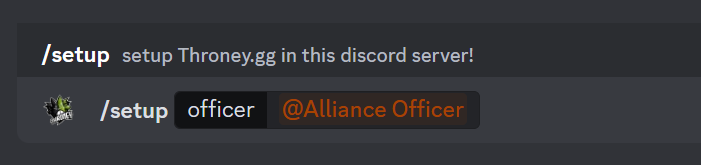
Once roles are created, use the following command in Discord to start the setup process:
```bash theme={null}
/setup [alliance officer]
```
* Select the newly created **Alliance Officer** role.
 * This will activate your **2-week trial** of Throney.
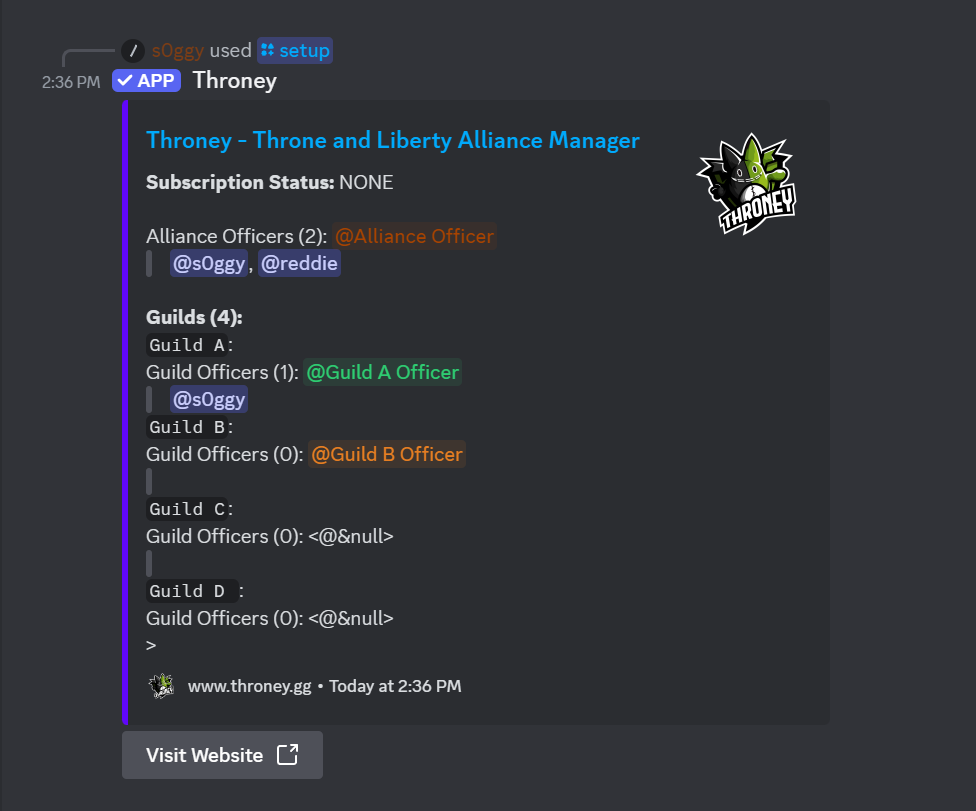
* You will see a **setup confirmation panel** like this:
* This will activate your **2-week trial** of Throney.
* You will see a **setup confirmation panel** like this:
 **Note:** After the trial period, a subscription will be required to continue using Throney.
***
## **Step 4: Access the Dashboard**
Once setup is complete, head over to the [Throney Dashboard](https://www.throney.gg) and log in.
* Click on your **Alliance**.
* You will see an interface similar to this:
**Note:** After the trial period, a subscription will be required to continue using Throney.
***
## **Step 4: Access the Dashboard**
Once setup is complete, head over to the [Throney Dashboard](https://www.throney.gg) and log in.
* Click on your **Alliance**.
* You will see an interface similar to this:
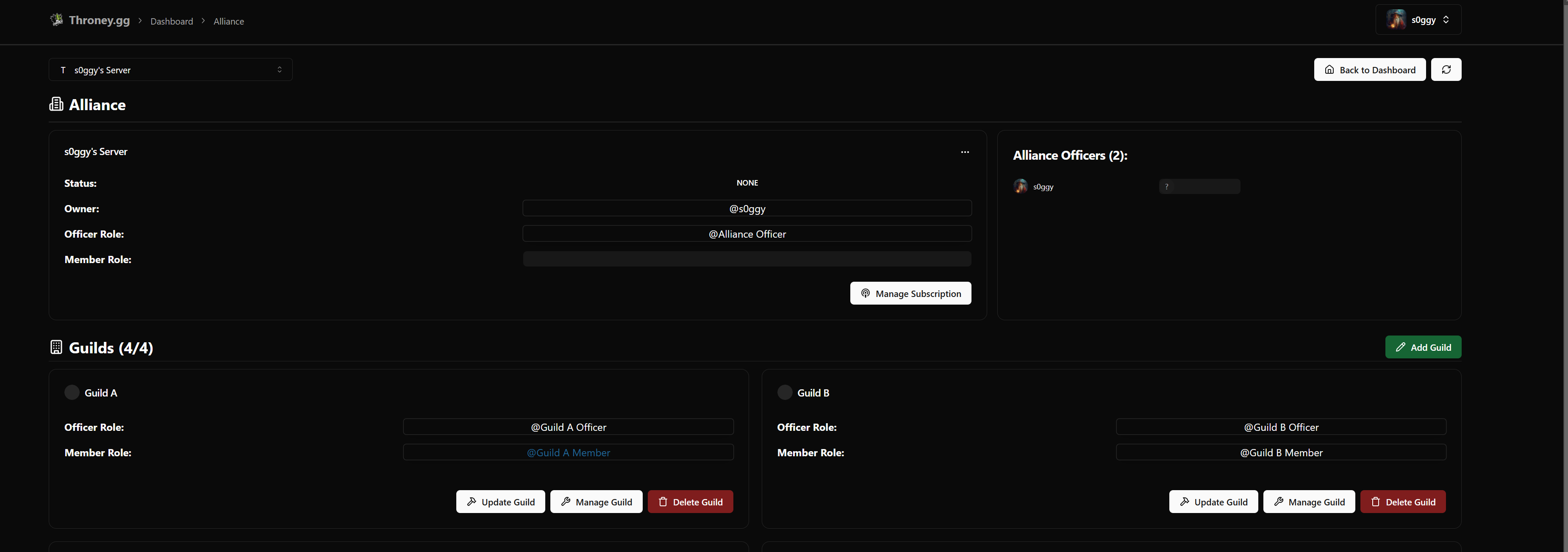 * Click **"Update Guild"** and select the **correct member role** for each guild.
* By default, only **one guild** is created. You can **rename it** or **add additional guilds** as needed.
Any updates to roles or changes in who has the officer roles will take up to 5 minutes to reflect. Alternatively, you can re-run the `/setup` command with the same role to apply the changes immediately. This is due to an efficiency limitation—thank you for your patience!
## **Step 5: Upload Your Character Data**
To start tracking members and event participation, **upload your character profile** by running the following command in Discord:
```bash theme={null}
/upload
```
* Attach a **clear screenshot** of your character page, ensuring all relevant details are visible.
* A valid character profile should look like this:
* Click **"Update Guild"** and select the **correct member role** for each guild.
* By default, only **one guild** is created. You can **rename it** or **add additional guilds** as needed.
Any updates to roles or changes in who has the officer roles will take up to 5 minutes to reflect. Alternatively, you can re-run the `/setup` command with the same role to apply the changes immediately. This is due to an efficiency limitation—thank you for your patience!
## **Step 5: Upload Your Character Data**
To start tracking members and event participation, **upload your character profile** by running the following command in Discord:
```bash theme={null}
/upload
```
* Attach a **clear screenshot** of your character page, ensuring all relevant details are visible.
* A valid character profile should look like this:
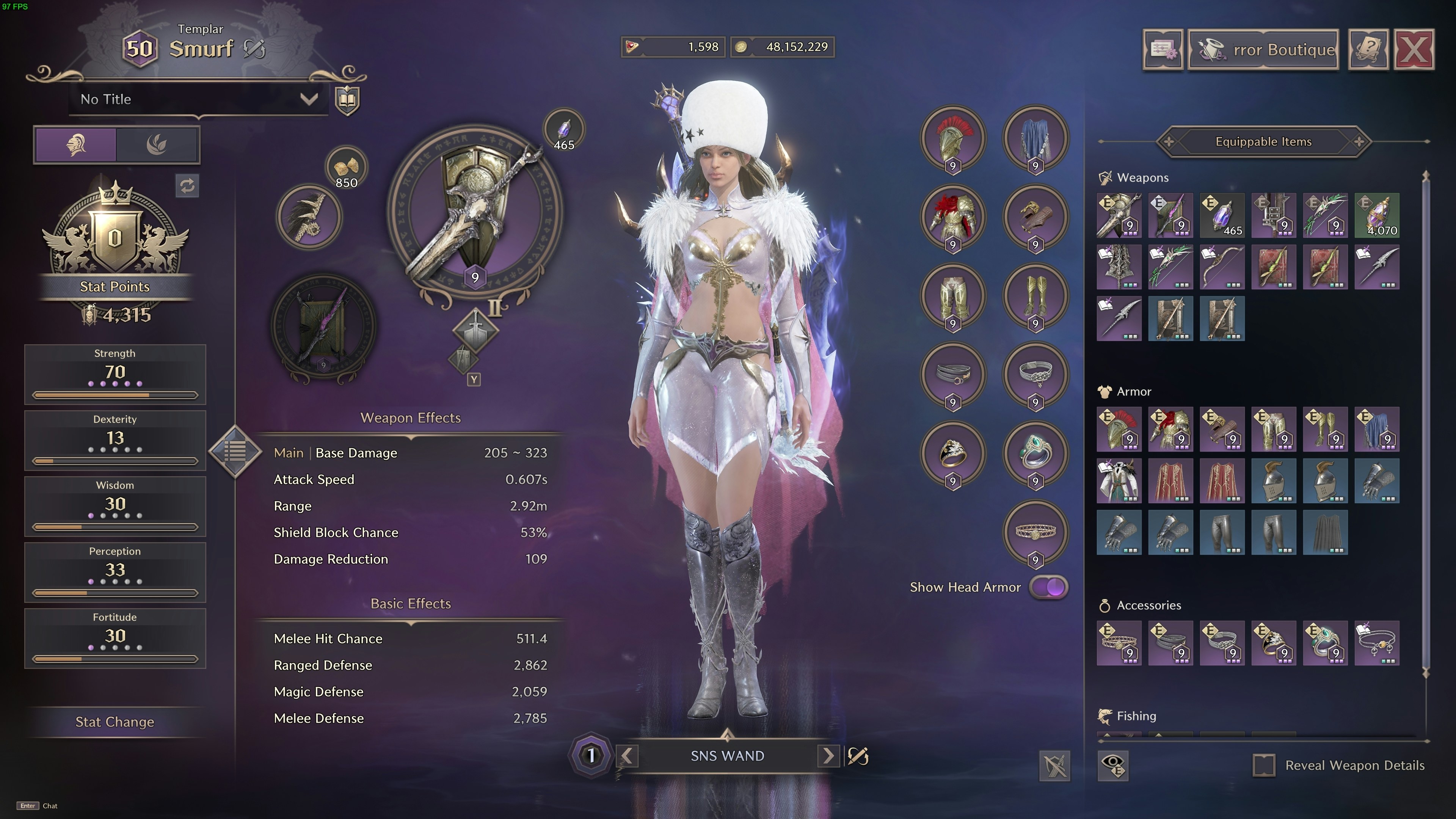 Ensure that **your class, level, and name** are clearly visible on the left-hand side of the screen.
***
## ✅ **Congratulations! You're All Set!** 🎉
Throney will now:
* **Automatically track attendance, events, and participation. for each user in the ecosystem**
* **Log data into the dashboard for officers to manage.**
* **Provide insights into guild and alliance composition.**
Explore the full potential of Throney and enjoy **seamless guild management**! 🚀
Ensure that **your class, level, and name** are clearly visible on the left-hand side of the screen.
***
## ✅ **Congratulations! You're All Set!** 🎉
Throney will now:
* **Automatically track attendance, events, and participation. for each user in the ecosystem**
* **Log data into the dashboard for officers to manage.**
* **Provide insights into guild and alliance composition.**
Explore the full potential of Throney and enjoy **seamless guild management**! 🚀