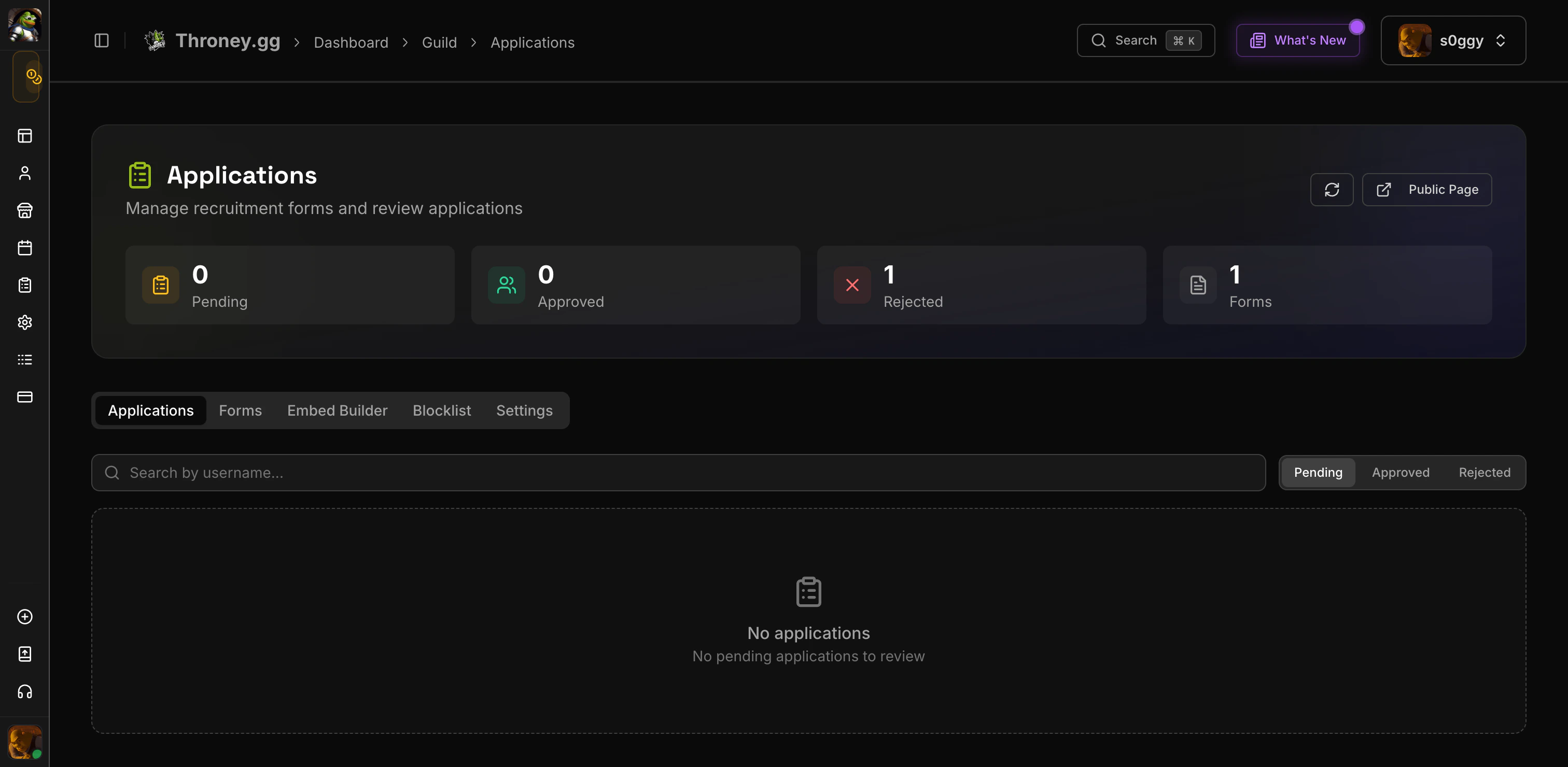
This is a premium feature. Free-tier alliances cannot access recruitment tools.
How It Works
- Officers create forms with custom questions on the web dashboard
- Officers post recruitment embeds in Discord channels with Apply buttons
- Applicants fill out forms via the public apply page or Discord buttons
- A review thread is created in your designated channel with the applicant’s responses
- Officers review using Accept/Deny buttons in Discord or on the web dashboard
- Applicants get notified via DM with the decision and any message from officers
Creating Application Forms
Navigate to Dashboard > Recruitment > Forms and click Create Form.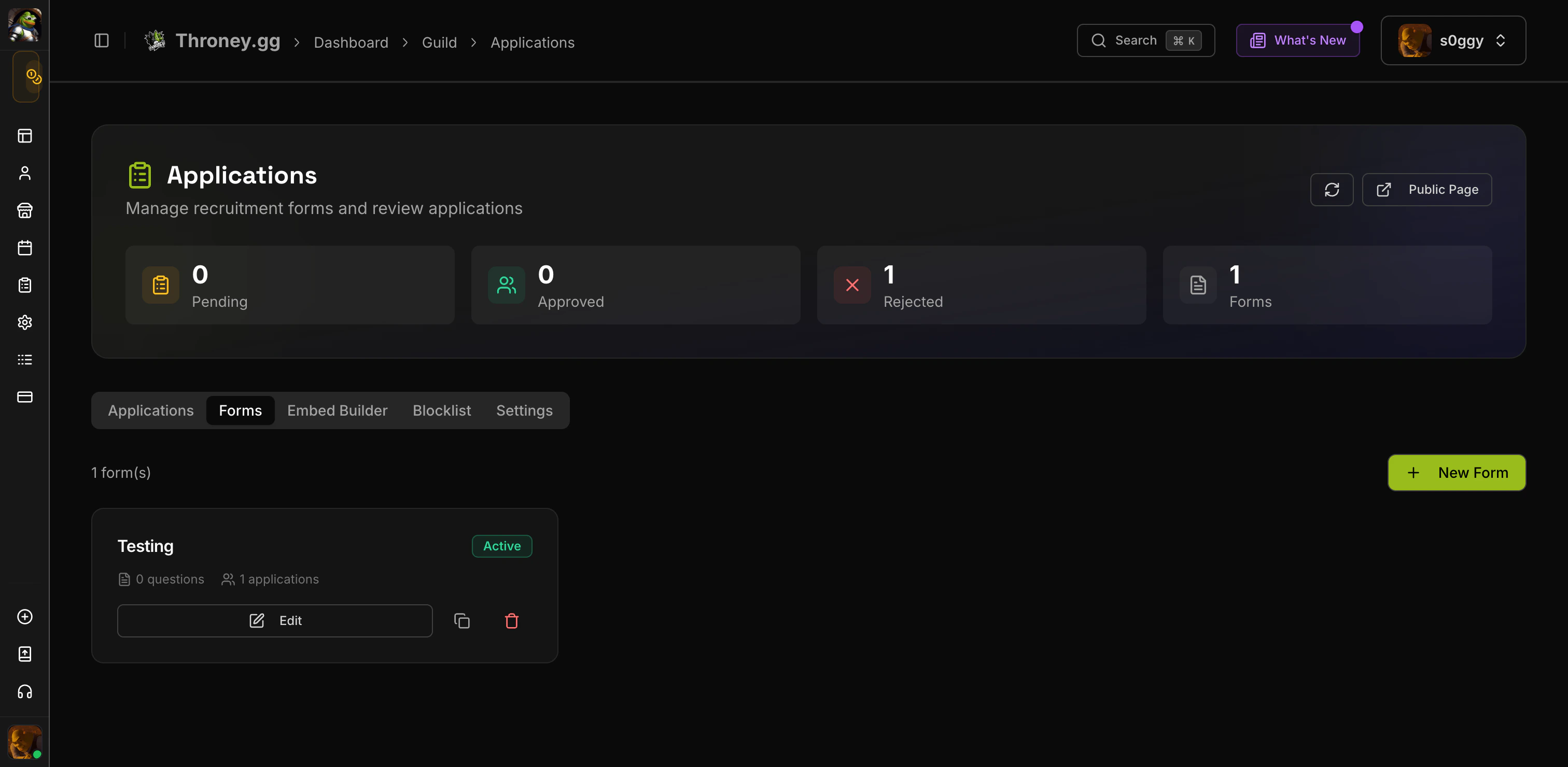
Form Settings
- Title - The name applicants see when choosing which form to fill out
- Description - Optional context shown at the top of the form
- Active - Toggle whether the form accepts new submissions
- Review Channel - Where review threads are created (overrides the default)
- Cooldown - Days an applicant must wait after rejection before reapplying
- Minimum Account Age - Reject accounts younger than this (in days)
- Required Roles - Discord roles the applicant must have to submit
Question Types
Forms support 8 block types:
Each question can be marked as required or optional, and has an optional description field for extra context.
Drag blocks to reorder them. The form builder has a live preview on the right side showing exactly how your form will look to applicants.
Posting Recruitment Embeds
Navigate to Dashboard > Recruitment > Embed Builder.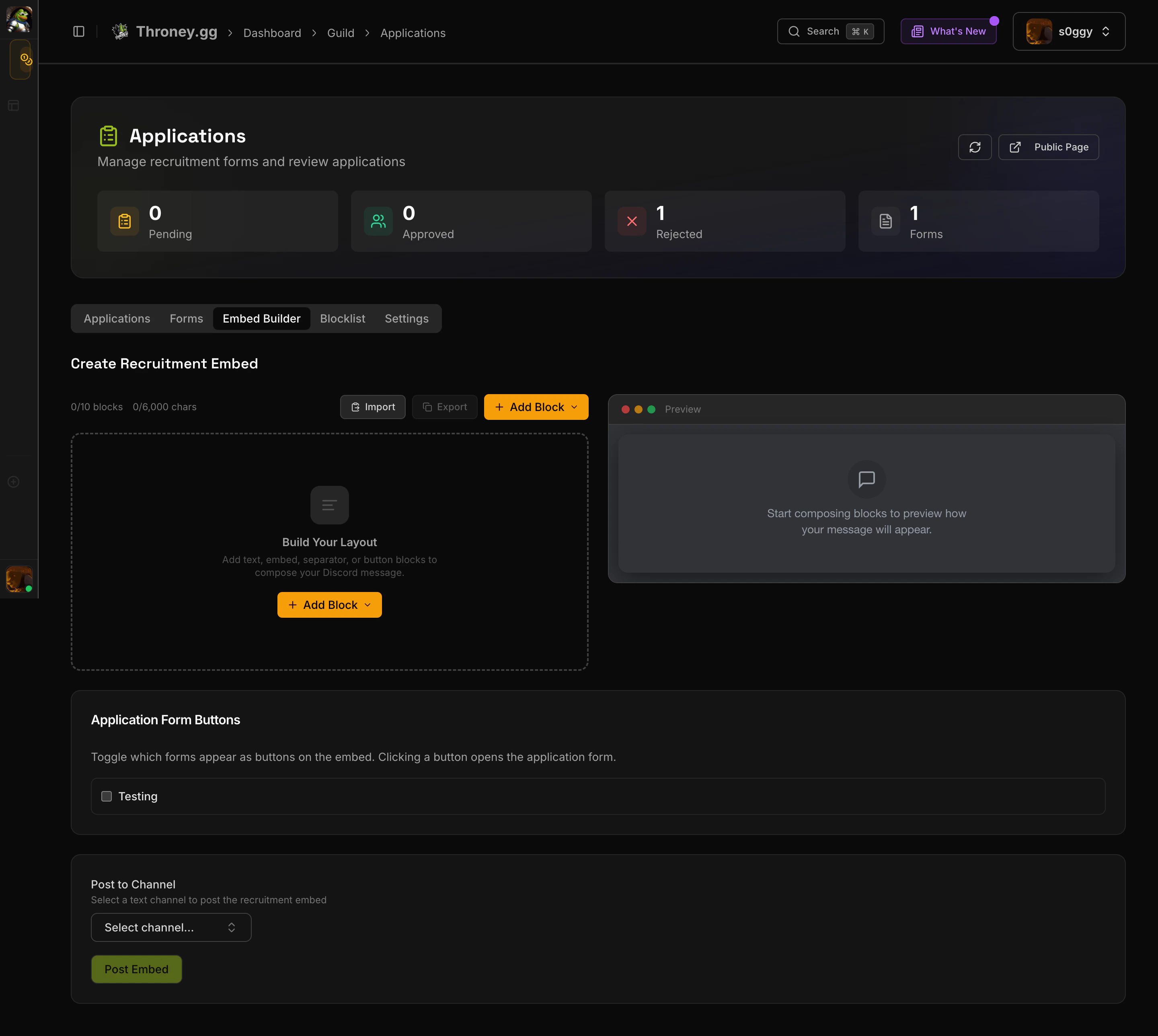
- Text blocks - Plain message content with Discord markdown support
- Embed blocks - Rich embeds with color, title, description, author, images, fields, and footer
- Separator blocks - Visual spacing between sections
- Button blocks - Link buttons with custom labels
Form Buttons
Below the editor, toggle which application forms appear as buttons on the embed. Each button can have:- A custom label (defaults to the form title)
- A style: Primary (purple), Secondary (gray), or Success (green)
Posting
- Select a text channel from the dropdown
- Click Post Embed
- The message appears in Discord with your form buttons attached
Public Apply Page
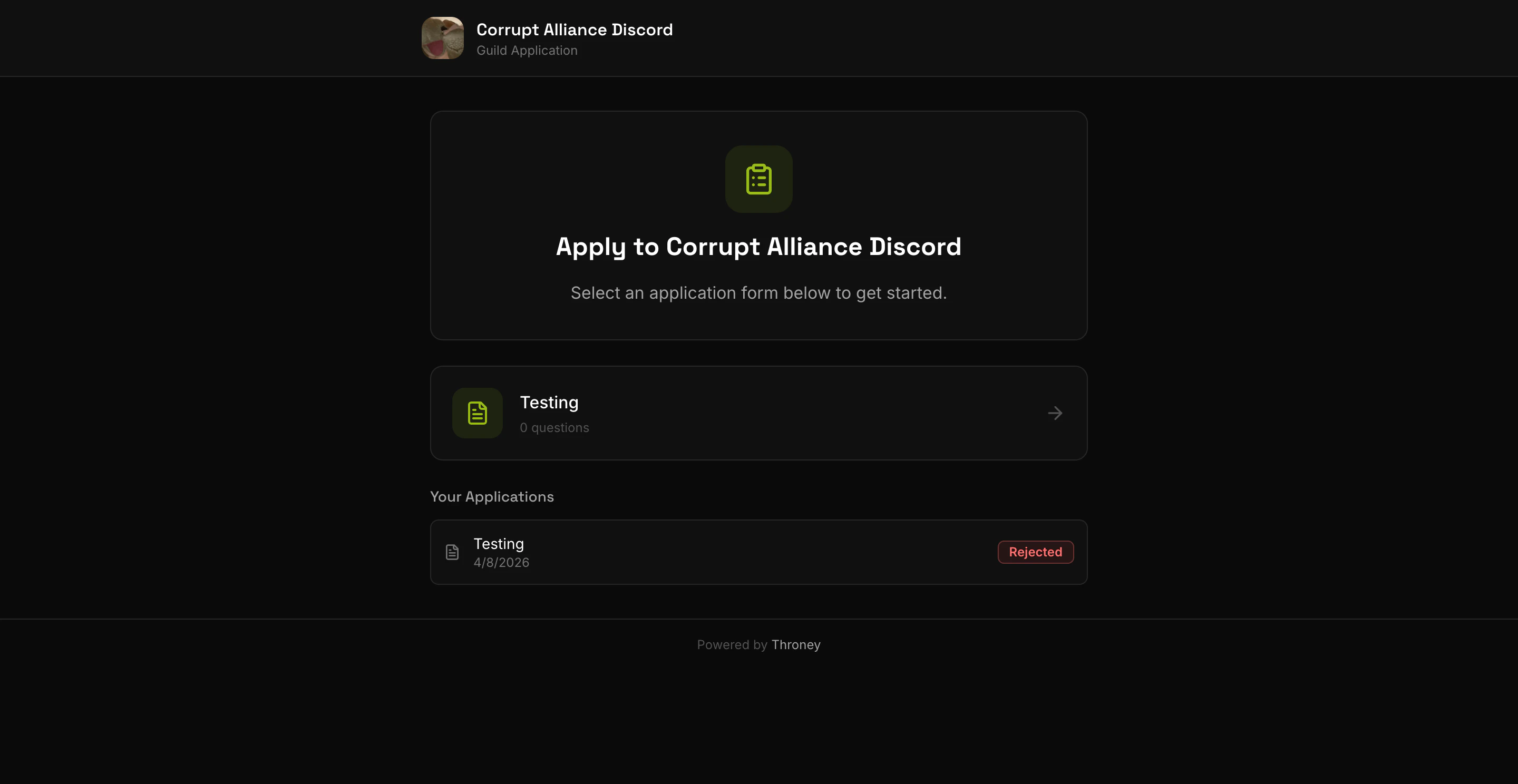
- They log in with Discord (if not already)
- They see all active forms and pick one
- They fill out the form with validation
- They review their answers before submitting
- They see a confirmation page
Discord Review Threads
When an application is submitted, Throney creates a thread in your review channel with:- The applicant’s Discord username and ID
- All their responses formatted as embed fields
- Four action buttons:
After a decision:
- The thread embed changes color (green for accepted, red for denied)
- Buttons are disabled
- A summary message is posted in the thread
- The applicant receives a DM with the decision
Web Dashboard Review
Navigate to Dashboard > Recruitment > Applications to see all submissions.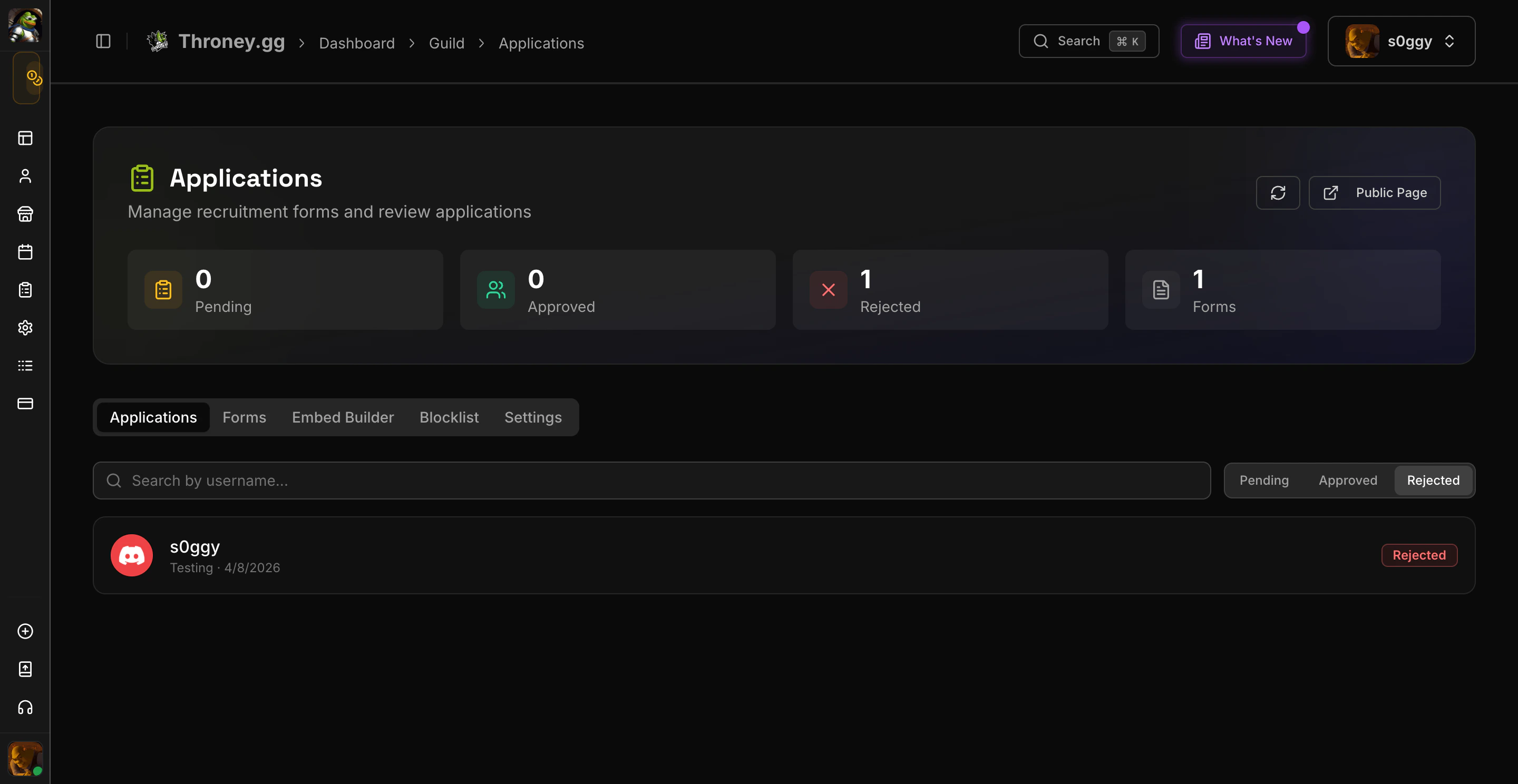
Filtering
- Filter by status: Pending, Approved, Rejected
- Search by applicant username
- View counts for each status
Reviewing an Application
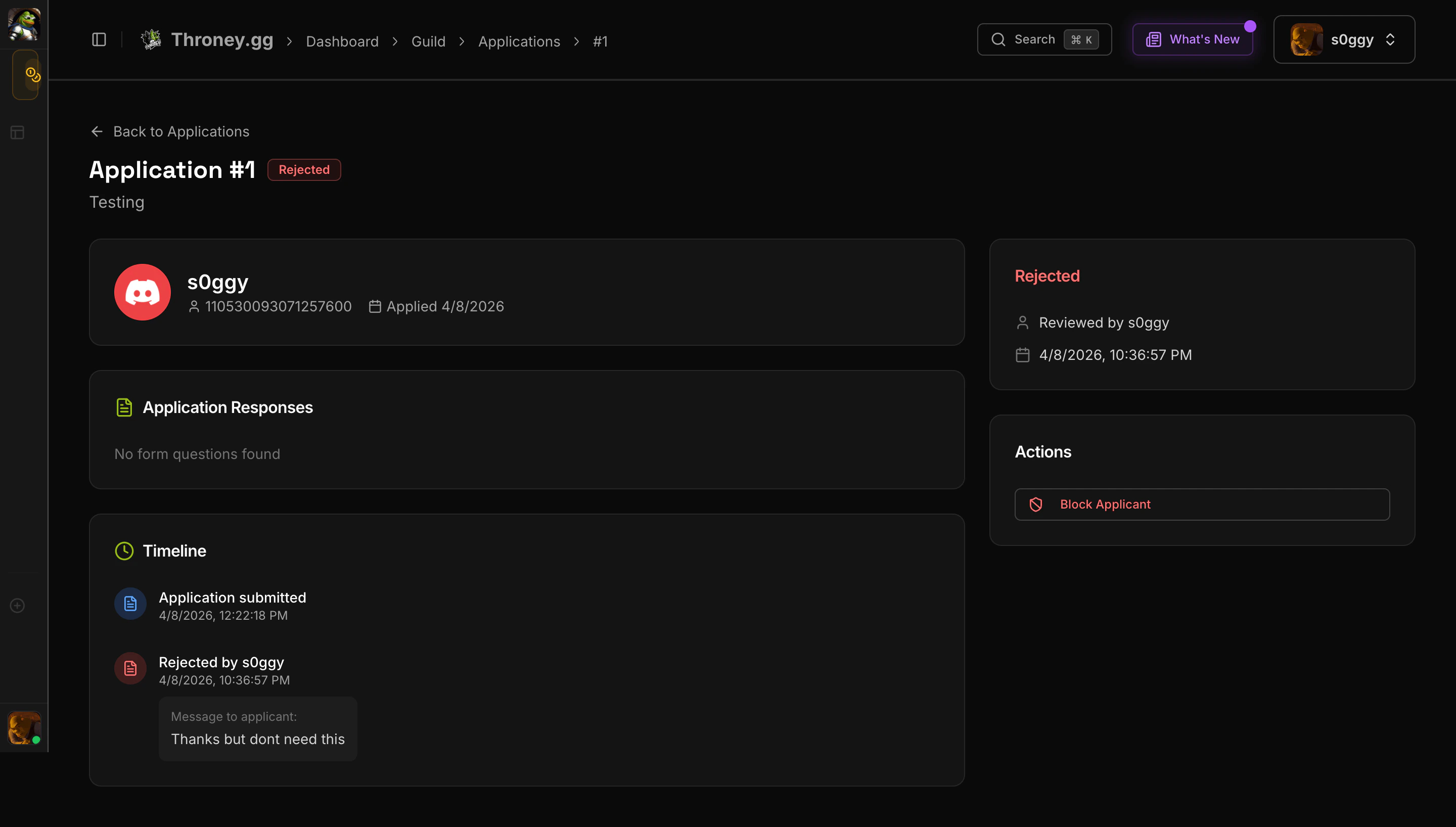
- Applicant info (avatar, username, Discord ID)
- All form responses rendered by type
- Application timeline
- Previous applications from the same user
- Write a message to the applicant (sent via DM)
- Add internal notes (visible only to officers)
Applicant Blocklist
Navigate to Dashboard > Recruitment > Blocklist. Block specific Discord users from submitting applications. Blocked users see an error when they try to apply. Each entry shows who blocked them and when.Settings
Navigate to Dashboard > Recruitment > Settings.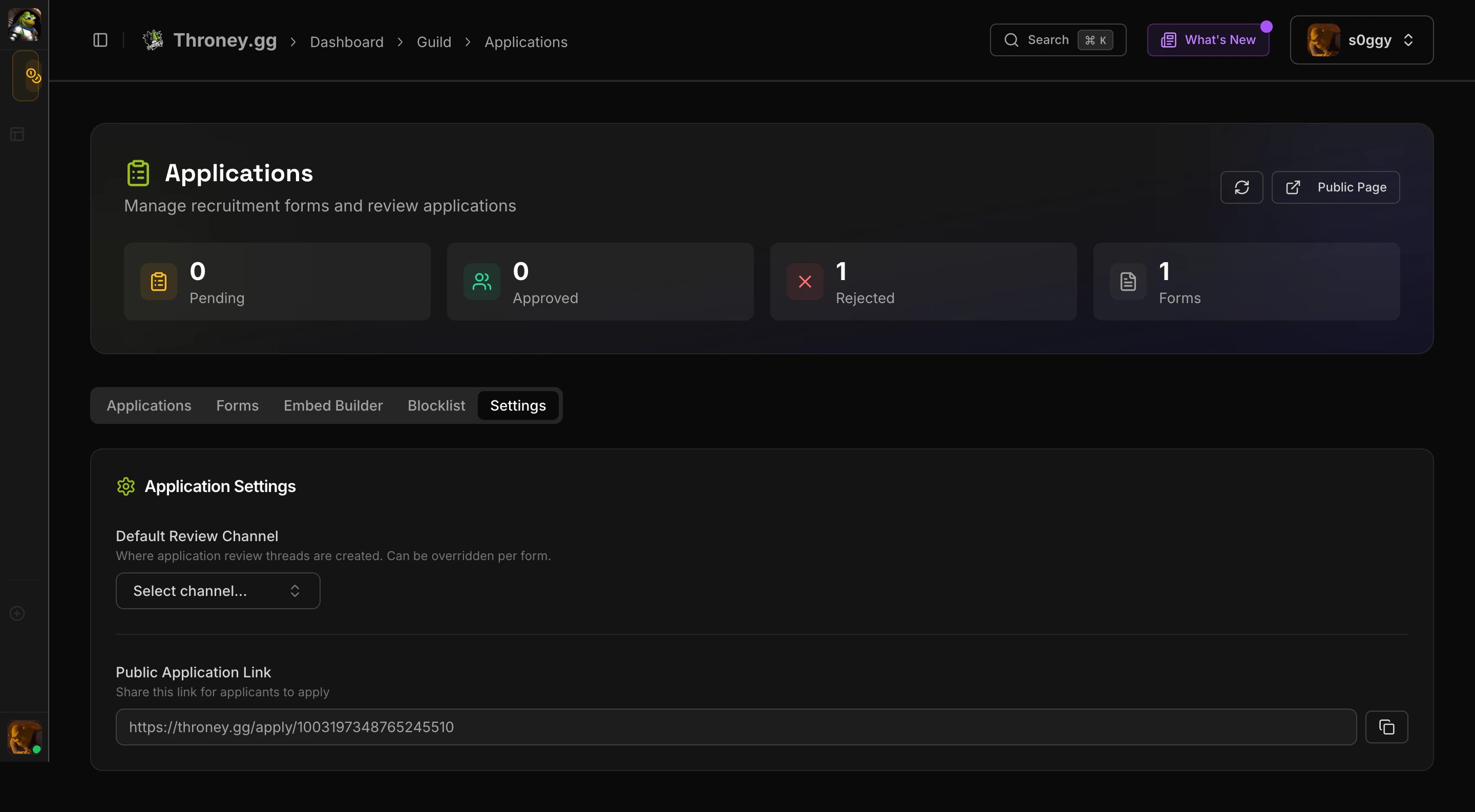
- Default Review Channel - Where application review threads are created (can be overridden per form)
- Public Application Link - Copy and share your alliance’s apply URL